‏إظهار الرسائل ذات التسميات SmartPhone. إظهار كافة الرسائل

الجمعة، 10 فبراير 2017

Sony’s new DRAM-enhanced image sensor is a game changer for smartphone photography


Sony announced the new chip architecture at ISSCC this week, as the latest in its long line of innovations in sensor design. The addition of on-board DRAM will help solve at least three major issues with current smartphone cameras: rolling shutter artifacts, slow-motion videos, and multi-image noise reduction artifacts. 

great band-aid for rolling shutter headaches

One problem with low-cost imagers, like those used in smartphones, is that they don’t have a mechanical shutter. Their images are read out one piece at a time while the sensor is still actively recording data (called a rolling shutter). That means that objects moving at high speed appear distorted, like the locomotive in this illustrative example from Sony:

On the left, the typical 1/30s readout time smears the profile of the moving locomotive. On the right, while still technically a rolling shutter, the new chip’s 1/120s readout time greatly reduces the potential for distortion.
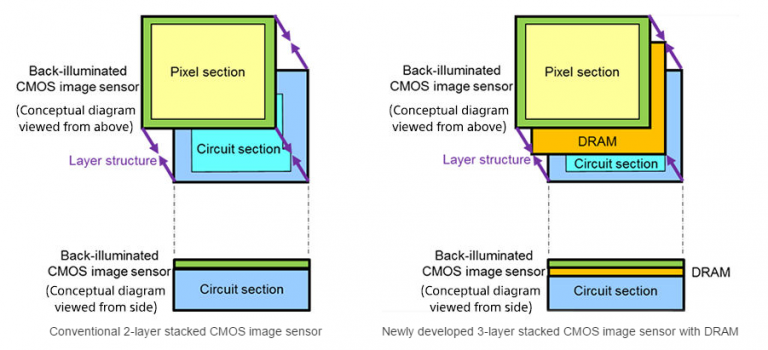
While the additional DRAM layer looks pretty simple in this block diagram, it changes the physics of the chip, and introduces additional opportunity for electrical noise. So far, the chip isn’t in production, so it isn’t possible to benchmark its real-world performance. But Sony claims it has been able to solve the new noise problems.

Support for super-slow-motion video and special effects


The DRAM also allows the sensor to capture 1000fps video at 1080p HD resolution. This makes for some very impressive super-slow-motion potential. By mixing high-frame-rate video with standard frame rate the chip also makes it possible to do some cool special effects right in a smartphone, as you can see in this Sony example video:
<iframe width="320" height="241" src="https://www.youtube.com/embed/dFdU-JjypWs" frameborder="0" allowfullscreen></iframe>

Expect record-setting image quality results from this sensor

Less obvious, but perhaps most importantly, the 30fps readout of full-resolution 19.3MP images is perfect for the sophisticated multi-image noise reduction that’s increasingly-common in high-end smartphones. For example, Google’s HDR+ silently combines between 3 and 9 frames to create a single higher-dynamic-range, lower-noise, final output image. That process can introduce artifacts if objects in the scene, or the camera, are moving. By having the frames captured and read out more quickly, those artifacts can be further reduced.

الأربعاء، 27 أبريل 2016

Give your phone a new lease of life with these custom ROM tips...


one of the best things about Android compared to other ‘lesser’ operating systems is ability to flash custom ROMs. If there’s mething that you aren’t happy with about your device, or perhaps the manufacturer has decided not to release further updates for your beloved phone, the wonderful Android community probably has something to suit. Such is the popularity of Android nowadays that choosing the right custom ROM for your needs can be tricky… and often many interesting custom ROMs can slip under the radar. We are here to help! We’ve looked at some of the lesser known custom ROM options available for a number of different devices to help you discover new and interesting alternatives. There are a huge number of custom ROMs available out there made by individual developers, but the number available for a device is generally proportional to the popularity of that device. If you own a super-popular phone such as a Samsung Galaxy or a Nexus, you’ll be set, but if your device isn’t as well supported your choices may be more limited. Most devices have some degree of support however. There’s even the option of making your own custom ROM if you’re using an Honor 5X.

Bootloader unlock basics Unlocking your bootloader is easy… when you know how 

Enable OEM unlocking

 In the latest Android releases, permission to OEM unlock the device has to be granted from the booted device – a nice security addition. In the Developer menu, where you also find USB debugging, turn on the OEM Unlock option. 

Request your unlock code


The first place to check to obtain your unlock code is the website of the manufacturer of your device. Note that an unlock code is not required for Nexus
devices. Some third party alternatives are also available, such as the DC-Unlocker app, though these are not free.


Unlock Your Device...

Once you have your unlock code, you need to apply it to the device – you do this using Fastboot, which is part of the Android SDK. From a command line, do ‘fastboot oem unlock [code]’. Remember, this will wipe your device!

الخميس، 21 أبريل 2016

Get Smart Lock Screen To your Android SmartPhone


Get useful information and apps at your fingertips, without ever unlocking your phone


Are you often wasting time fumbling around with your smartphone to find the information you need? Do not despair, as this is where Defumblr, available free from Google Play, is here to help. Unlike other lockscreens, where you have the option of selecting which information appears when your phone is locked, Defumblr learns which data and details are important to you based on your phone usage. This means that calendar notifications, instant messages, emails, your to-do list, latest news of interest and much more can be quickly accessed with a single swipe. Setting up the app is straightforward, and using it is a doddle. The only concern is providing access to so much potentially important data from your lockscreen, but as long as you have a PIN or passcode set up in the app, this should not be a problem.


  • Get started with Defumblr

Click through the setup wizard to access the Notification screen, ensure the app is selected and click OK to confirm that you wish to enable Defumblr. You will need to follow the wizard to disable your built-in lockscreen.

  • Check the weather

Defumblr makes it easy to simply glance at the information on your smartphone lockscreen and find out what you need to know. For example, the widget can display the weather conditions and temperature for quick and easy access.

  • Do not disturb mode

Easily disable lockscreen notification alerts by tapping the Defumblr icon, which should be labelled Notification On by default. In the resulting screen, select Do Not Disturb. Eventually, the app learns when your quiet times are.

  • Customise Defumblr

Tap the gear icon to view Settings. Here you can manage password options (a PIN or pattern lock are available), specify the number of lockscreen widgets, and configure how information is displayed, such as the weather.

  • Keep your phone secure

As your new lockscreen, you need to ensure that Defumblr is capable of keeping your smartphone secure. Setting a PIN or pattern lock will prevent access to personal apps and accounts such as your browser, Twitter and email.

  • Watch Defumblr adapt

With regular use, the Defumblr lockscreen adapts based on the latest information arriving on your phone. As information arrives, specific widgets are resized and prioritised. This helps you to quickly find what you’re looking for...


السبت، 9 أبريل 2016

Next-gen phones all have an edge

MWC was packed with brands showing off phones that all have their own unique selling points.


 Samsung wasn’t the only manufacturer showing off new devices and features at Mobile World congress – both flagship brands and smaller device makers had plenty of new tech to showcase too.
LG made waves with the innovative G5 and its 'Friends’ – a host of optional plug-in modules including battery-boosting camera grip the LG cam Plus, audio booster the LG HiFi Plus (which also comes with a pair of Bang and Olufsen H3 hadphones), plus a dual-sensor spherical camera, VR headset and the Sphero-style Rolling Bot. This was a huge sensation at MWC and we Can’t wait to get our hands on the entire bundle!


BQ launched the M10 Ubuntu tablet, packing in a full PC-style Linux distro, plus the updated Aquaris X5 Plus smartphone, while Huawei showcased the MateBook, a two-in-one tablet/ laptop running Windows 10. Huawei has also just announced a partnership with iconic camera brand Leica, so we’re anticipating incredible lenses and sensors to be included in the Chinese brand’s future phone offerings.


Meanwhile Kyocera made a splash by going one better than Sony and Samsung and unveiling phones that are not only waterproof but can also cope with a dunk in saltwater (the Torque G02), or with being washed in 40-degree soapy water (the Digno Rafre). Sadly, the two bathing beauties are currently only available in Japan.

الخميس، 25 فبراير 2016

Get Samsung Galaxy Edge Style Notifications On Your Android Device...

Get Edge-style notifications about incoming phone calls on any Android device
The Samsung Galaxy S6 Edge came with an innovative way of displaying notifications - illuminating the bevelled edge along the side of the screen. Now even if you don’t have an S6 Edge, you can still get a taster of this Edge display using the Edge Color Notifications app.
The drawback is that no device other than the S6 Edge has that bevelled edge, so the app compensates by illuminating the edges of your screen with animations instead. You can also assign specific colours to your important contacts, so you can see who’s calling at a glance. You can even tell the app to reserve animations for the contacts you’ve assigned a colour to, so if you see an Edge-style notification, you’ll know someone important is calling!

STEPS TO STYLE...

1. Enable settings

Download the Edge Color Notifications app from the Play store and launch the app. To set up Edge Color Notifications, open the side menu and select Home. Enable both the People Edge and Phonecall notification options. Open the side menu and select Phone Call Settings.

2. Customise Your Columns

You can customise the Edge effects for when you receive a phone call. This includes changing the width of the animated columns (so the effect is more noticeable or subtle) and changing the column’s default colour. You can also choose from a list of animations.

3. Left, Right Or Both

One of the most important changes you can make is choosing which side of the screen your animations will appear: left, right or both. If you select the Full Border animation, your columns appear around every side of the screen, regardless of what you select here.

4. Assign specific colours

By default, Edge Color Notifications will apply the same colour to every single person in your contact lists, but you’ll usually get more value out of the app by assigning specific colours to people. To do this, open the side menu and select Contacts Colors.

5. Choose a new colour

You’ll see a list of all your contacts, with the same default colour next to each contact. To assign someone their own colour, tap the block of colour that appears next to their name and choose a new colour from the pop-up that appears. Tap OK to save your changes.

6. Be Selective

Once you’ve finished assigning colours, you can restrict Edge Colour so that it only displays the Edge animations for contacts that you’ve assigned a specific colour to. If this is the case, return to Phone Call Settings and select Only show contacts with specific color set.

Enjoy your Edge notification Style device...

الخميس، 24 سبتمبر 2015

Redesign AOSP with WanamKit

Better known for customing TouchWiz, Wanam Kit also Works With Vanilla Android too


There are countless Android ROMs out there, but unless you build the ROM yourself, chances are there are always going to be one or two things you would like to change. Wanam Kit originally found fame as a means to de-bloat Samsung’s TouchWiz user interface, which was notorious for its excessive bloatware until the Galaxy’s S6 feature cull. However, Wanam Kit also works with stock ROMs as the Xposed module lets you make a wide range of tweaks to any ROM based on the Android Open Source Project (AOSP). These customization include visual changes such as replacing the standard battery icon, to more functional changes such as disabling lollipop’s new heads-up style notification system. Once you’ve installed Wanam Kit, you can make your changes by exploring the app’s various menus and then disabling or enabling the different options as desired. Before any of these changes become active, you need to reboot your device, so the only downside is that if you want to experiment with a few different changes then you may need to reboot several times before you’re happy with the end result. This module requires root access and the Xposed framework. If you haven’t installed Xposed, Lollipop users can find the necessary files and instructions at the XDA Developer thread goo.gl/DFXwGg. If you’re running an earlier version of Android, you can install the Xposed framework via an in-app updater, available from goo.gl/PAGTpi.

Steps:-


  • Activate Wanam Kit

Download Wanam Kit (Xposed) from the Google Play store. Open your Xposed Installer, tap Modules and make sure that Wanam Kit is selected. To activate this module, reboot your device. Then open your Wanam app. At this point, you’ll see the main Wanam menu.


  • Customizable status bar
Select Status bar. In this section, you can customize the stock status bar, including changing the battery icon. You can replace it with a circle battery icon, hide the battery icon completely, or display the percentage of battery remaining by selecting ‘Show Battery Text’. 

  • Tweak your battery text
If you do choose to ‘Show Battery Text’, you’ll get access to some additional options that allow you to customize this battery text. You can change the colour of the text, the typeface/font used, and the typeface style by choosing from Italic, Bold or Normal.

  • Edit or hide your clock position
You can change the position of the digital clock that appears towards the right of the status bar. To make this change, tap Clock position and choose from Right, Center or Left. You can also remove the clock completely by tapping Clock position and then Hide.

  • More detailed notifications 
Do your notifications fail to give you enough details at a glance? You can enable the ‘Expand all notifications’ option so that all notifications appear expanded. The Status bar section contains several options, including enabling and disabling Lollipop’s heads-up notifications.

  • Additional options for notifications
When heads-up notifications are enabled, you have additional options. If you have a habit of dismissing notifications and forgetting to act on them, you can enable Ongoing notifications. You can also increase the delay before you can dismiss a notification using ‘Heads up delay.’ 

  • The advanced power menu
If you’re constantly booting into your bootloader or recovery, you can save time by adding these to your power menu. Exit the Status bar and select System from the main. Select Advanced reboot > Reboot options and select Soft reboot, Recovery or Bootloader.

  • More menu options 
There are two other options you can add to your advanced power menu. The first is Enable mobile data where you add an option to turn your mobile data on and off. The second is Quick dial, where you add a telephone number to your power menu.

  • Quick dial shortcut 
To add a quick dial shortcut to a telephone number of your choice, tap Quick dial number and then enter the telephone number. If you want to disable this feature at any point, select Quick dial number again, but this time delete the entire number and tap OK.

  • Improve device’s performance 
Even if you dismiss an app, it can leave processes running which has an impact on performance. Using Wanam, you can kill all processes running in the foreground; just long press your device’s Back button. To activate this functionality, select ‘Long BACK kills process’.


السبت، 5 سبتمبر 2015

Get a fully customisable hybrid lockscreen on your android device

Personalise your lock screen to include app shortcuts,additional security, and even an iOS-style slider


Lollipop’s lock screen saw the return of a pair of app shortcuts – one for the Camera and one for the Phone app. However, the stock lock screen doesn’t give you any way of customising these shortcuts, which is where the Hi Locker lock screen replacement app comes in. The Hi Locker app includes five fully customisable app shortcuts, plus some additional features for further customising your lock screen.
Some of these features are merely cosmetic, such as tweaking the text that appears on your lock screen, but others let you add extra functionality. This tutorial shows you how to set up Hi Locker and explores the main ways you can use this app to personalise your lock screen. You can download Hi Locker for free from Google Play. Once it’s downloaded, launch your new Hi Locker app and let’s get started!


  • Set up Hi Locker

Hi Locker starts by asking your name, so enter it and tap Next, then ‘Turn on Notification Access.’ Select the Hi Locker checkbox, then tap OK. Press your device’s Back button. To prevent a double lock screen effect, tap Turn Off System Lockscreen and None. Finally, tap Start Now.

  • Add events

Navigate to your lockscreen. To dismiss a notification, swipe from the right. To open the related app, swipe from the left. Swipe your lock screen to the left and you’ll see upcoming events. To add an event to Google Calendar and your lock screen, tap the ‘+’ icon.

  • Using app shortcuts

To use Hi Locker’s app shortcuts, open your lock screen and then drag the white dot until five app icons appear. Continue to drag onto the shortcut you want. You can customise these shortcuts so they link to different apps. To do this, open the Hi Locker app.

  • Add some security

Tap on Shortcut, drag the dot, select the shortcut you want to edit, and choose a new app from the list. While you’re here, you may also want to add a security lock to your lock screen. Return to the main Hi Locker menu, tap Security and select Pattern or Pin.

  • Get an iOS lock screen

Another big part of Hi Locker is customising your lock screen to look as you want. Return to Hi Locker’s main menu. Here, you can replace your Android lock screen with a ‘slide to unlock’ iOS-style lock screen; tap Unlock Style, select iOS and tap OK.

  • Try a new font

Select Edit message from the main menu. Here, you can replace the lock screen’s standard greeting by tapping Never Give Up… entering your own text, then tapping the Use Your Message slider. To change the font, tap Font Style and choose a new font.

Key Features


★ With 3 unlock style: Classic, Lollipop, iOS.
★ What's next: Show/Add events, weather in the next few days on lock screen.
★ Hi Locker is your lock screen, you can customize everything with your own style.
★ Hi Locker with smart feature will automatically give some greetings to make you feel funny and friendly when using such as: good morning, good evening...
★ Enter your name: You can enter your name or favorite status on lock screen.
★ Hi locker displays notification on lock screen, you can easy to view, or delete notification by swiping left or right.
★ Drag "the dot" to circle lock or double tap to on "the dot" to unlock lock screen.
★ Open quickly or change usual app easily.
★ Wallpaper: Easy to change, add or delete wallpaper. Automatically change wallpaper after a period of time, blur wallpaper when you have new notification...
★ More watch’s user interfaces for choosing.
★ Weather: Automatically displaying weather information after a period of time.

Secure Lock Screen:
★ Hi Locker has two unlocking modes by password, you can choose unlocking by PIN or by “Drawing”.
★ Supports fingerprint lock for samsung devices.
★ Provide feature that allows showing, hiding notification on lock screen.
★ Smartly turning off password feature: Automatically turning off password mode when your device connects to wifi address.


Enjoy your new smart lockscreen look.....

الجمعة، 4 سبتمبر 2015

Power-up Android Lollipop’s Notifications

Get more info from Android 5.0 alerts with the updated version of XBridge


Those of us who have a ton of apps are bombarded with a stream of notifications. However, with so many different icons it can be tricky to keep track of where notifications came from and where the apps themselves have come from. XBridge is a module that has just been updated for Android 5.0 that gives you more information about the apps sending you notifications. A push on the bar will let you perform a web search related to that app or go straight to Google Play, where you can uninstall the app. This tutorial will show you how to get the Xposed module and then use it to keep on top of all the notifications that appear on your Android handset throughout the day. You will need root access for this.

How to Power up :- 

1. Get XBridge


Head to the Xposed Module Repository (http://goo.gl/l4u6z0) and click on the download link to add XBridge to your phone. Unfortunately there is not a Google Play version so you have to use the APK. Head into the installer and click the tick next to XBridge.

2. Finish setting up


Reboot your phone. Once it turns back on, you should be ready to start using the module. If it isn’t, make sure you had ticked the box. XBridge may not work if you have certain custom ROMs set up, so check XDA Forum for non-compatible ROMs.

3. Notification locations


If you receive a notification and want to know which of your apps it is from, drag down your Quick Settings menu and then tap and hold on the notification. You should now see a range of icons. Tap the briefcase icon to go to that app in Google Play.

4. Edit Notifications


As before, drag down the Quick Settings menu, tap the notification and then hold. You should see an I in a circle appear. If you tap this, you can jump straight into your notification settings for this app without having to find them manually.

5. Enter your settings


Certain apps can also have their general settings hidden away in the depths of your phone. Drag down, tap and hold again, before pressing the cog icon. This will take you directly to that app’s Settings page so you can perform a range of actions, such as uninstalling it.

6. Search Google Play


If an app is feeling buggy, head into the Recently Used apps list, press that app’s information bar and hold. Tap the Google Play icon that appears. This will take you directly to that app’s Play store page where you can uninstall and reinstall the app easily.

Enjoy it.....

الخميس، 3 سبتمبر 2015

Boost your battery with IFTTT recipes

If you haven’t had the powersaving Lollipop update, IFTTT’s new features are here to help

The IF for Android app can now control your battery. The easy-to-use automation app was already pretty great, but now it can effectively bring Android Lollipop’s Battery Saver Mode to older phones. While there isn’t currently a recipe to restrict apps when power is low, it can shut down Wi-Fi and Bluetooth. If you already have Android 5.0, IFTTT also has recipes to send low power alerts to your PC and monitor when you charge your device. If you’re not familiar with the IF app or IFTTT online service, it ties actions to triggers, for example, turning off Bluetooth when the app senses your battery is low. IF doesn’t just work with your battery, it works with hundreds of apps and online services to offer a simple alternative to Tasker. Before you read on, first download IF by IFTTT from Google Play and set up an account.

Steps to go:-

1. Search for recipes


In the IF app, tap the pestle and mortar symbol to open a side menu and tap the plus symbol to go to the Add a Recipe menu. Tap Search and look up Android Battery. Tap the one you want in the results, then press Done.


2. Get low power alerts


Try the recipe that sends a notification to your phone when you have a low battery (https://goo.gl/SHcFtz) or, to make sure you don’t miss the alert, have it sent directly to your Android Wear smartwatch (https://goo.gl/Orlmi4).

3. Turn off functions


Even when you’re not using blutooth or near a wifi hotspot, these sensors sap your power. when your battery is getting low, IFTTT can automatically turn off Bluettoth and Wi-Fi.

4. Mute when charging


There’s a recipe to mute your phone when you put it on charge (https://goo.gl/v1R6I4). To save you adjusting the volume when you wake up, also install this recipe to unmute when you unplug.

5. Knowledge is power


If you think you’re charging your device too much, keep track with IFTTT. You can record every time your phone’s battery is low in a spreadsheet, or keep a tally of how often you charge it .

6. Create your own


Return to the Add a Recipe screen, press ‘+’. Choose a trigger and an action. We selected Android Battery, then selected Android Device and Update Device Wallpaper as the action to imitate Lollipop’s orange Battery Saver Mode theme.

Enjoy Great Battery Backup!!!

الثلاثاء، 4 فبراير 2014

Huawei new smartphone launched in Germany.


In Germany,Huawei launched new smartphone called Ascend Y530.This smartphone has launched as budget based smartphone. Huawei introduces Ascend Y530 in Germany which is comes with 4.5-inch wider screen.This smartphone running with Android 4.3 OS which is latest in the market.Also it has 1.2GHz with dual-core Snapdragon 200 processor.Also Huawaei is planning to increase the smartphone launch all over the world and continuously concentrate on this segment.

Huawei Ascend Y530 key specifications


  • Android 4.3 with Emotion UI
  • 1.2 GHz dual-core Qualcomm MSM8210 processor with Adreno 203 GPU 3G
  • Dimensions and weight: 132.5 x 67 x 9.3 mm, 145 g
  • 4.5-inch FWVGA (854x480pixels) LCD
  • RAM: 512 MB, ROM: 4GB, microSD card slot
  • Wi-Fi b/g/n, Bluetooth 4.0
  • 5MP rear camera with auto focus, front camera
  • 1750 mAh battery
  • FM Radio, GPS / A-GPS


الخميس، 30 يناير 2014

Intex launched Aqua Curve in India.


Intex is one of the India based smartphone maker which is recently announced and launched new smartphone called Aqua Curve smartphone.The new Android 4.2 version of this smartphone runs really good in speed and it has price tag of Rs.12,490.Soon it will be available for the sale across the country.The new smartphone comes with specification of 5-inch qHD display, 1.3GHz quad-core MediaTek MT6582 processor, 1GB of RAM and 2000 mAh battery. The phone also comes with 8MP rear camera, 2MP front camera, 4GB of internal storage, 3G and microSD card slot.

Along with hardware specification it has dual-SIM support with Wi-Fi and Bluetooth as well as  GPS on the smartphone.The new smartphone comes with three different color options Blue, Red and Black colour options.

ASUS launched new smartphone.


ASUS's recently released new smartphone called PadFone E which is silently added to it smartphone series.The new ASUS smartphone has show cased online in ASUS official website.The new Smartphone comes with 4.7-inch wider screen smartphone along with 10-1-inch tablet dock.When we look at the specification of the smartphone its running with Android 4.3 OS which is latest and it has 1.4GHz processor with Snapdragon 400 quad-core processor for the fastest access.

The new smartphone comes with 1GB of RAM and it has microSD Card slot of additional memory usage. The smartphone has 1820mAh power battery and 5000mAh battery power in dock.Also dock supports dual-SIM features.The Padfone E comes with Black and white color with price tag of $560 along with dock.

الثلاثاء، 28 يناير 2014

T-Mobile announced two new smartphone Today.


In their Android series T-Mobile added two new smartphones called LG G Flex and Optimus F3Q smartphones.These smartphones coming to sale and it will be available for customers starting from February 5.The new smartphone LG G  Flex comes with price tag of $672 and other smartphone Optimus F3Q comes for the price tag of $312.Also there are plans available for 24 months $28 for G Flex and $13 for F3Q.

The specification of LG G Flex
LG's first curved screen released with this LG G FLex smartphone.Also It comes with 6-inch plastic OLED display and packs 13MP rear camera, 3,500 mAh battery, Android 4.2.2 and 2.3GHz Qualcomm Snapdragon 800 processor.

The specification of LG Optimus F3Q
The specification of LG Optimus F3Q is QWERTY slider, which packs 4-inch IPS TFT display, 5MP rear camera, VGA front camera, 2,460mAh battery, and 1.2GHz dual-core Qualcomm MSM8930 processor. It also packs 1GB of RAM, 4GB internal storage, and microSD card slot.


LG has introduced some software tweaks QuickMemo and QSlide function on both smartphone and along with some specialised feature.