‏إظهار الرسائل ذات التسميات Mobile. إظهار كافة الرسائل

الجمعة، 10 فبراير 2017

Rumor: Apple may add wireless charging to iPhone 8, but top-end model could cost $1,000


There are rumors swirling around the iPhone 8 suggesting Apple could be planning to offer a major technology leap forward with its 10th Anniversary iPhone, but the highest-end devices may not be cheap.
Business Insider has published a pair of rumors on various aspects of the upcoming iPhone 8. KGI Securities analyst Ming-Chi Kuo Apple will move back to all-glass construction with the iPhone 8 for all three models. The use of glass could make it more difficult to implement the wireless charging support Kuo expects the new device to offer, and overheating could be a problem due to the difference in thermal dissipation between glass and metal. Kuo writes:
Adoption of glass casing & wireless charging unfavorable to thermal system operation for three new 2017F iPhone models; bigger impact on OLED model. The thermal system becomes less efficient with glass casing, as compared to metal casing used previously. Furthermore, wireless charging increases handset temperature. While we don’t expect general users to notice any difference, lamination of an additional graphite sheet is needed for better thermal control and, thus, steady operation; this is because FPCB is replaced with film, which is more sensitive to temperature change of the 3D touch sensor in OLED iPhone.

 Kuo suspects that Apple can solve this problem by adding the aforementioned graphene sheet, but that it could increase the cost of the OLED panel by as much as 50%. That brings us to our second rumor. Scuttlebutt suggests the top-end iPhone 8 with an OLED display, wireless charging, and a 5.8-inch screen could hit $1,000 or even more. Mark Sullivan of Fast Company agrees with Kuo on this point. Sullivan expects the iPhone 8 (or iPhone X) to offer more RAM, more storage, and possibly higher clock speeds than other Apple devices.

The iPhone 8/X is also expected to offer home buttons and fingerprint sensors built directly into its edge-to-edge screen, a double camera, and 3D-sensing technology provided by Lumentum. Companies like Amazon and Google have played with 3D-sensing technology to varying degrees, and the tech could be useful in augmented reality and virtual reality applications.
Now, keep in mind, that $1,000+ price tag is strictly for the premium model. There would be three smartphones in total: A 4.7-inch model (iPhone 7s), a 5.5-inch model (iPhone 7s Plus) and the 5.8-inch iPhone 8 or iPhone X with higher specs wherever possible. Apple has supposedly tied up OLED suppliers and is working on integrating a much larger battery into the iPhone 8/X. The company is also expected to use both Intel and Qualcomm modems.
For now, it looks like Apple will debut a number of brand-new features for the iPhone 8/X, then roll those features out to the entire product lineup, most likely the following year. That would keep some technologies positioned as halo items for the luxury buyers, while simultaneously ensuring over the long term that these features would be used.

السبت، 16 أبريل 2016

Q mobile i10 scatter file firmware

firmware file for Q mobile i10 most people having problem with this cellphone coz its a very low cost company but whatever people still like it so here is the splash frimware file first download the drivers install them then download the sp tool i already share it on my blog so search it then download then firmware file Download unzip it install from sp tool scatter file your done .... best of luck
for new here is the procedure form other website Follow

السبت، 26 مارس 2016

Boost your device’s display with Textdroider


Improve your device’s screen density, or shrink your UI to squeeze more content on screen...
When you think about the quality of your device’s display, you should be thinking about screen density, not resolution. Screen density is a ratio of resolution and screen size, measured in dots per inch (dpi). The higher the dpi, the smaller each individual pixel, which means greater clarity and a  more detailed display.

The Textdroider app lets you improve your device’s display by increasing dpi. You can also create a zoomed-out effect by lowering your display’s dpi, which allows you to fit more content on screen and can be used to bring a tablet feel to Android smartphones.

Although Textdroider is straightforward to use, it can cause your device to go into a bootloop or encounter other errors. For this reason it’s essential you create a full backup so you’ll have something to restore if your device goes haywire.

Steps:- 


1. Download Textdroider

Textdroider can cause your device to go
into a bootloop, so do a full backup before you start. Once you’re fully backed up, download Textdroider DPI from the Google Play Store. Launch the app. Read the on-screen warning, and then tap ‘I get it’ to proceed.

2. Change your dpi

The main Textdroider DPI screen displays your current dpi; in the screenshot above, this is 480 dpi. To change your dpi settings, tap the New DPI field and enter a new value. Tap the Apply button. Confirm that you want to change your device’s DPI by tapping Yes.

3. Reboot Your Device

Grant Textdroider superuser permissions when prompted. After a few moments, ‘DPI after reboot’ will be updated to the new value. The new setting will only be applied upon reboot, so tap Textdroider’s Reboot button, and confirm by tapping Yes.

4. View Your New Screen

Once your device reboots, the new dpi
setting should be in effect. However, there’s a chance your device will show an error message and refuse to boot properly. If this happens, you can fix it by booting into your device’s custom recovery and restoring your last backup.

5. Stuck in a bootloop?
Textdroider may also cause your device to go into a bootloop. If this happens, then once again the fix is restoring a backup. Alternatively, if you’re familiar with the Android Debug Bridge (adb) that comes as part of the Android SDK, you can fix this issue using adb commands.

6. Push And Pull

Attach your device to your computer and use adb commands to adb pull /data/data/ 
com.texdroider.texdroider_dpi/files/backup/build.prop from your device and onto your PC. Then, adb push this file onto your device so that it overrides the /system/build.prop file.

الأحد، 28 فبراير 2016

Tutorial:- Get started with gesture typing...

Hate typing? Supercharge your text entry by setting up gesture typing...


Typing on Android devices can feel like a time consuming and frustrating experience, particularly if you’re used to touch-typing on your laptop or computer. One technique that can really boost your words per minute is gesture typing. This is where you swipe to type across the keyboard, passing through all the letters you want to input rather than tapping each one individually.
In this tutorial, we’ll look at how to gesture type on the stock Google keyboard, which comes pre-installed on most devices. You can check which keyboards are installed on your Android device by opening your Settings, selecting Language & input and then checking what keyboards appear under the Keyboards & input method heading. If you don’t have access to the Google Keyboard, you can download it from the Play store.

  • Steps...


1. Enable gesture typing

Make sure gesture typing is enabled by opening your device’s Settings and selecting Language & Input. Tap Google Keyboard> Gesture Typing and check that the Enable gesture typing slider is set to the On position. If it isn’t, then tap the slider.

2. How to customize

This menu includes some additional settings. When Dynamic floating preview is enabled, the system tries to guess the word you’re entering by displaying a floating bubble. When Show gesture trail is enabled, you’ll see the path of your gesture across the keyboard.

3. Write with Gestures

To use gesture typing, open the keyboard and long press on the first letter of the word you want to type, then slide your finger slowly across all the subsequent letters. When you see the word you want to input, release your finger and the word will appear.

4.Try third-party keyboards
If you find Android’s built-in gestures lacking, you can try a third-party keyboard app. One popular alternative is SwiftKey, which you can download for free from Google Play. Launch the app and follow the onscreen instructions to set SwiftKey as your default keyboard.

5. Switch to Gesture mode

Gesture typing in SwiftKey works the same as in Android’s default keyboard, but it also has a Gestures mode where you can use shortcuts. To switch modes, launch the app, select Typing>Typing & Auto correct and Flow or gestures. In the pop-up, select Gestures.

6. Try swipe Gestures

In Gestures mode you can no longer gesture type, but you can swipe left to delete a word and swipe up on the keys to capitalist them. If you want to resume gesture typing at any point, you can simply switch back to the original Flow mode.

السبت، 20 فبراير 2016

#Hacker zone - Underclock for better battery life...


A few choice tweaks to your kernel settings can also extend the life of your battery Changing the clock speed is always about finding the right balance between power and battery life. Overclocking will likely require you to sacrifice a little of the latter.

Underclocking is the opposite: it involves reducing the speed of the processor in an attempt to extend your battery life.It isn’t a magic wand. Underclocking causes some tasks to take longer to complete, which offsets the benefits of having the processor using less power at its maximum level. Nevertheless, for some tasks it can be beneficial and switching the governor can have noticeable effects. As ever, the best approach is to experiment with settings to find ones that work for you. And don’t push things too far – if you set the processor clock speed too low it may not deliver enough speed for your apps to work. 

1. Set up the app

In EX Kernel Manager, create a backup of your existing kernel settings. Open the sidebar and select Tools, followed by Kernel Backup. Tap the disk icon to create the backup and give it a recognisable name should you need to restore it someday.

2. Reduce the clock speed

Now go into the CPU settings. Underclocking is the same as overclocking, except in reverse. Try experimenting with lower maximum frequencies, so that your phone runs at a slightly slower speed, causing it to use less power. Just don’t overdo it!

3. Change the governor

You also need to adjust the governor settings. The obvious one to use is the Powersave governor, which locks the CPU to the lowest frequency. However, you might do better with the Performance governor, so that tasks will complete in the shortest possible time.

4. Test the changes

Exit the app and then test your changes. Open a few apps or games and run a few common tasks. It’s likely that you’ll notice the phone is a little slower, but if it’s too slow then you will need to tweak your changes. You want to find a balance between speed and batter.

5. Explore Powersave mode

The EX Kernel Manager also has a Powersave utility. This is activated by tapping the leaf icon at the very top of the app’s screen. This mode sets the processor to run at predefined levels and enables you to quickly reduce power consumption.

6. Tweak settings

To change the Powersave mode settings, tap the three-dot menu icon and choose Settings. You can set Powersave to activate automatically on a certain battery level or hit Advanced settings to reduce the CPU speed even further. Again, keep your changes small.

Enjoy Great New Powerd Life....

السبت، 5 سبتمبر 2015

Get a fully customisable hybrid lockscreen on your android device

Personalise your lock screen to include app shortcuts,additional security, and even an iOS-style slider


Lollipop’s lock screen saw the return of a pair of app shortcuts – one for the Camera and one for the Phone app. However, the stock lock screen doesn’t give you any way of customising these shortcuts, which is where the Hi Locker lock screen replacement app comes in. The Hi Locker app includes five fully customisable app shortcuts, plus some additional features for further customising your lock screen.
Some of these features are merely cosmetic, such as tweaking the text that appears on your lock screen, but others let you add extra functionality. This tutorial shows you how to set up Hi Locker and explores the main ways you can use this app to personalise your lock screen. You can download Hi Locker for free from Google Play. Once it’s downloaded, launch your new Hi Locker app and let’s get started!


  • Set up Hi Locker

Hi Locker starts by asking your name, so enter it and tap Next, then ‘Turn on Notification Access.’ Select the Hi Locker checkbox, then tap OK. Press your device’s Back button. To prevent a double lock screen effect, tap Turn Off System Lockscreen and None. Finally, tap Start Now.

  • Add events

Navigate to your lockscreen. To dismiss a notification, swipe from the right. To open the related app, swipe from the left. Swipe your lock screen to the left and you’ll see upcoming events. To add an event to Google Calendar and your lock screen, tap the ‘+’ icon.

  • Using app shortcuts

To use Hi Locker’s app shortcuts, open your lock screen and then drag the white dot until five app icons appear. Continue to drag onto the shortcut you want. You can customise these shortcuts so they link to different apps. To do this, open the Hi Locker app.

  • Add some security

Tap on Shortcut, drag the dot, select the shortcut you want to edit, and choose a new app from the list. While you’re here, you may also want to add a security lock to your lock screen. Return to the main Hi Locker menu, tap Security and select Pattern or Pin.

  • Get an iOS lock screen

Another big part of Hi Locker is customising your lock screen to look as you want. Return to Hi Locker’s main menu. Here, you can replace your Android lock screen with a ‘slide to unlock’ iOS-style lock screen; tap Unlock Style, select iOS and tap OK.

  • Try a new font

Select Edit message from the main menu. Here, you can replace the lock screen’s standard greeting by tapping Never Give Up… entering your own text, then tapping the Use Your Message slider. To change the font, tap Font Style and choose a new font.

Key Features


★ With 3 unlock style: Classic, Lollipop, iOS.
★ What's next: Show/Add events, weather in the next few days on lock screen.
★ Hi Locker is your lock screen, you can customize everything with your own style.
★ Hi Locker with smart feature will automatically give some greetings to make you feel funny and friendly when using such as: good morning, good evening...
★ Enter your name: You can enter your name or favorite status on lock screen.
★ Hi locker displays notification on lock screen, you can easy to view, or delete notification by swiping left or right.
★ Drag "the dot" to circle lock or double tap to on "the dot" to unlock lock screen.
★ Open quickly or change usual app easily.
★ Wallpaper: Easy to change, add or delete wallpaper. Automatically change wallpaper after a period of time, blur wallpaper when you have new notification...
★ More watch’s user interfaces for choosing.
★ Weather: Automatically displaying weather information after a period of time.

Secure Lock Screen:
★ Hi Locker has two unlocking modes by password, you can choose unlocking by PIN or by “Drawing”.
★ Supports fingerprint lock for samsung devices.
★ Provide feature that allows showing, hiding notification on lock screen.
★ Smartly turning off password feature: Automatically turning off password mode when your device connects to wifi address.


Enjoy your new smart lockscreen look.....

الجمعة، 4 سبتمبر 2015

Restrict permissions with XPrivacy

Decide what personal info and hardware apps can access
It was recently announced that the next generation of Android, Android M, will give users granular control over app permissions. However, if you’ve got a rooted device you can already do this with the XPrivacy module. This lets you to select apps and deny them access to various information on your phone. As well as this, it will also let you fool your phone to protect your privacy. You can manually input a location, new number and a host of other details so an app believes you’re elsewhere or sends the wrong phone number to apps to keep your real details safe. Read on to find out how to install XPrivacy, block apps from mining your data and change your settings to keep your identity secret.

Steps :- 

1. Install XPrivacy


To begin, ensure your phone is rooted and you have the Xposed Framework installed. Then either go to the Xposed Module Repository (http://goo.gl/KK8yMB) or search for [Root] XPrivacy Installer in the Google Play store and download the free app.

2. See your apps list


Reboot your device. Head into the Xposed Installer app and tick the box next to XPrivacy. Reboot your phone again and this should cause XPrivacy to become active. If this is the case, open up XPrivacy and you will see your full list of apps.

3. Fool your phone 


Tap the menu in the top right and hit Settings. This is where you can trick your phone into giving out fake details. Change your location, phone number or any of the other options. When apps read this information it will take its details from here.

4. Deny specific permissions


Tap on a particular app and a screen will appear showing all the permissions you have granted it. By pressing the tick next to it, the app will believe the data in your new Settings list, such as your pretend location.

5. Restart your handset


Once you have selected the permissions you want to remove from the account, restart your phone. When it turns back on, the app should now be reading the fake data. Remember apps sometimes require genuine data to work, such as Google Maps.

6. Block all permissions


If you want to perform a blanket deny on all permissions for an app, hit the tick box next to the app name and it will automatically tick everything off for you. This is a particularly useful procedure for games because they shouldn’t need to access anything.

Power-up Android Lollipop’s Notifications

Get more info from Android 5.0 alerts with the updated version of XBridge


Those of us who have a ton of apps are bombarded with a stream of notifications. However, with so many different icons it can be tricky to keep track of where notifications came from and where the apps themselves have come from. XBridge is a module that has just been updated for Android 5.0 that gives you more information about the apps sending you notifications. A push on the bar will let you perform a web search related to that app or go straight to Google Play, where you can uninstall the app. This tutorial will show you how to get the Xposed module and then use it to keep on top of all the notifications that appear on your Android handset throughout the day. You will need root access for this.

How to Power up :- 

1. Get XBridge


Head to the Xposed Module Repository (http://goo.gl/l4u6z0) and click on the download link to add XBridge to your phone. Unfortunately there is not a Google Play version so you have to use the APK. Head into the installer and click the tick next to XBridge.

2. Finish setting up


Reboot your phone. Once it turns back on, you should be ready to start using the module. If it isn’t, make sure you had ticked the box. XBridge may not work if you have certain custom ROMs set up, so check XDA Forum for non-compatible ROMs.

3. Notification locations


If you receive a notification and want to know which of your apps it is from, drag down your Quick Settings menu and then tap and hold on the notification. You should now see a range of icons. Tap the briefcase icon to go to that app in Google Play.

4. Edit Notifications


As before, drag down the Quick Settings menu, tap the notification and then hold. You should see an I in a circle appear. If you tap this, you can jump straight into your notification settings for this app without having to find them manually.

5. Enter your settings


Certain apps can also have their general settings hidden away in the depths of your phone. Drag down, tap and hold again, before pressing the cog icon. This will take you directly to that app’s Settings page so you can perform a range of actions, such as uninstalling it.

6. Search Google Play


If an app is feeling buggy, head into the Recently Used apps list, press that app’s information bar and hold. Tap the Google Play icon that appears. This will take you directly to that app’s Play store page where you can uninstall and reinstall the app easily.

Enjoy it.....

Hackers View Android Smartphone Tips & Tricks - 01


  • Surround sound on Google Movies
Enjoy movies with 5.1 surround on Android

Peace and quiet has descended. Work is done, the kids are in bed (or the parents!) and you’re ready to watch a movie on your Android Lollipop phone or tablet, streamed direct from the internet via the Play Movies & Videos app. You make your selection, hit play and… well, it looks good, but the sound could do with a lot of work. Movies play with surround sound at the cinema but despite your phone’s sound system, the same doesn’t seem to be true here. Or is it? Although it should be enabled by default, you can easily switch on Dolby 5.1 surround sound in the Play Movies & Videos app. Open the menu, then Settings, find Surround Sound and check the Enable Surround Sound box. You might even tap the Play Demo button to get an idea of the 5.1 soundtrack capabilities of Android.


  • Change brightness depending on time
It is possible to manage brightness more effectively on your Nexus 5

Display brightness can be a big problem on the Nexus 5, especially for battery life. While the Adaptive Brightness setting can be useful, a slicker option is to have the brightness automatically change depending upon the time of day You’ll need to have Unknown Sources enabled (you can do this from Settings>Security) before heading to XDA-Developers.com and searching for and then downloading the BrightTime app. Upon launching BrightTime you’ll find some timestamps already present. You can use these or delete them and set up your own using the ‘+’ button. Just tap on a time and adjust the slider to determine how bright the display should be at that time; you can also adjust the clock as necessary. For instance, you might have the brightness turned high during daylight hours and then turned lower during the night. With the BrightTime app active, your phone’s brightness will be adjusted when the corresponding time of day arrives.


  • Set owner information
Display a lock screen message, and help get your lost phone back!
Your phone has been lost. Fortunately, though, it’s in the hands of someone trustworthy and who wants to return it. That’s the good news. The bad news is you didn’t save any contact information on your device, so your Good Samaritan doesn’t know how to get in touch to return your Android. This isn’t a situation you want to be in is it? So best avoid it, something that can be easily done via Security>Owner info. This is a space where you can add a message instructing a kindly discoverer of your Android phone or tablet in the steps they can take to return it to you; perhaps you might even mention a reward (but only if you’re prepared to pay it, of course!) For safety’s sake, however, please don’t include any personal data, beyond a secondary phone number or email address. When you’re finished, tap back to save.


  • Cast your screen for productivity
The Cast screen button will send your Android home screen to a TV via Google Chromecast..
One of the most overlooked options in the Quick Settings screen on Android Lollipop has to be the Cast screen. Using this, you can send what is currently displayed on your device to any TV with a paired Google Chromecast attached.While this might be something as mundane as browsing the web or enjoying Facebook on your TV, you could also be sending far more important pictures from your Android device to any HDTV or other hardware with a HDMI input. For instance, Skype sessions can be sent from your phone to your TV, meaning the person you’re speaking to is presented in a more life-like size. Alternatively, you might send a presentation from Office 365’s PowerPoint or Google Slides. To enjoy this feature, run the app you want to use and then open Quick Settings and tap Cast screen.


  • Hack the Lollipop Overview screen


The new Overview screen displays your open apps and, if the feature is active, enables you to pin an app or game, thereby cancelling the menu buttons. But the Overview itself can be tweaked, enabling you to specify various settings including how many running apps are listed. On a rooted Android device, head over to Google Play and search for the utility Recently by Chainfi re. Install it on your phone or tablet to proceed, and then launch. Grant super user access to proceed, then toggle the switch in the top-right corner of the display. You’ll see a number of options, such as Age Limit, which determines how long an app can stay in the Overview, and Entry limit, where you can cut down the number of apps that are listed in the Overview screen to just running apps. Many other options are available; use them to customize the screen.

الخميس، 3 سبتمبر 2015

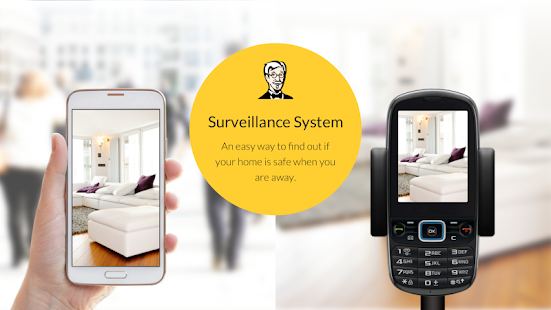
Turn any device into a007 spy camera

Build your own security camera system using Android devices and the Alfred app


If you want to keep an eye on things at home while you’re at work, there’s a far cheaper and easier alternative to setting up dedicated security cameras. The Alfred app links two Android devices – one that is acting as the camera, the other which is acting as a viewer – via a Google account. This means that you can see the live view from the camera on the other device. The app is completely free (although it is ad-supported) and it’s an ideal way to repurpose an old phone you no longer use. The real beauty is that you can add as many cameras (and viewers) as you like, to create a sophisticated security system tailored to your needs. Most things can be controlled remotely from the viewer and you can even conduct a two-way conversation through the camera device – so you could use it as a baby monitor. What’s more, a motion detection option will send you a notifi cation when triggered and take a series of photos.

1. Camera or viewer


Download the Alfred app onto two devices.select one to be a viewer and the other a camera. log into the same google account on both devices , so they can be connected check you can see the vie from the camera in the viewer.

2. Place the camera


Place your camera device to watch an area. You could put it in a mug to keep it upright, or go to the trouble of hiding it. Note that the camera still works when the device is asleep. Make sure the audio is turned on if you want it.

3. Viewer options


The viewer device has a few options. If the view is oriented wrongly, tap the rotate icon to correct it. The LED light and night vision options can be useful in a darkened room. You can set night vision to Automatic in the camera settings.

4. Look both ways


Tapping the camera arrows icon switches between front and rear cameras, so you could use one device to cover two areas. Holding the mic button lets you talk through the remote device, to speak to a delivery man or deter an intruder.

5. Use motion detection


Motion detection can be activated on the camera or viewer and there are three sensitivity settings. When triggered, it takes photos and sends a notification to the viewer device. Events and photos are stored for seven or 14 days.

6. Add extra cameras


You can add more devices (including iOS ones) to set up a more elaborate system. Tap the cog icon for a camera in the main menu to rename it. You can also set up a ‘trust circle’, to share the camera’s feed with another Google address.